Overview
Notification rules are one of the rule types you can create with the powerful Nucleus Automation Engine. Define custom vulnerability and asset criteria to trigger automatic notifications to yourself or others on your team. For example, you might want to trigger a notification to push an alert to Microsoft Teams or Slack on a particular asset when new findings of high severity or above are discovered.
Key Concepts:
- Vulnerability Criteria - Filters which findings trigger the notification (severity, CVE, scan source, etc.)
- Asset Criteria - Filters which assets are included (asset groups, hostnames, etc.)
- Notification Method - Where notifications are delivered (Chat, Email, SMS, Webhook, In-App)
Create notification rules
Creating and editing notification rules in Nucleus is quick and straightforward.
1. From within a Nucleus project, you have two options: A) click on the notifications bell icon in the toolbar or B) navigate to the Automation page and click Notifications.
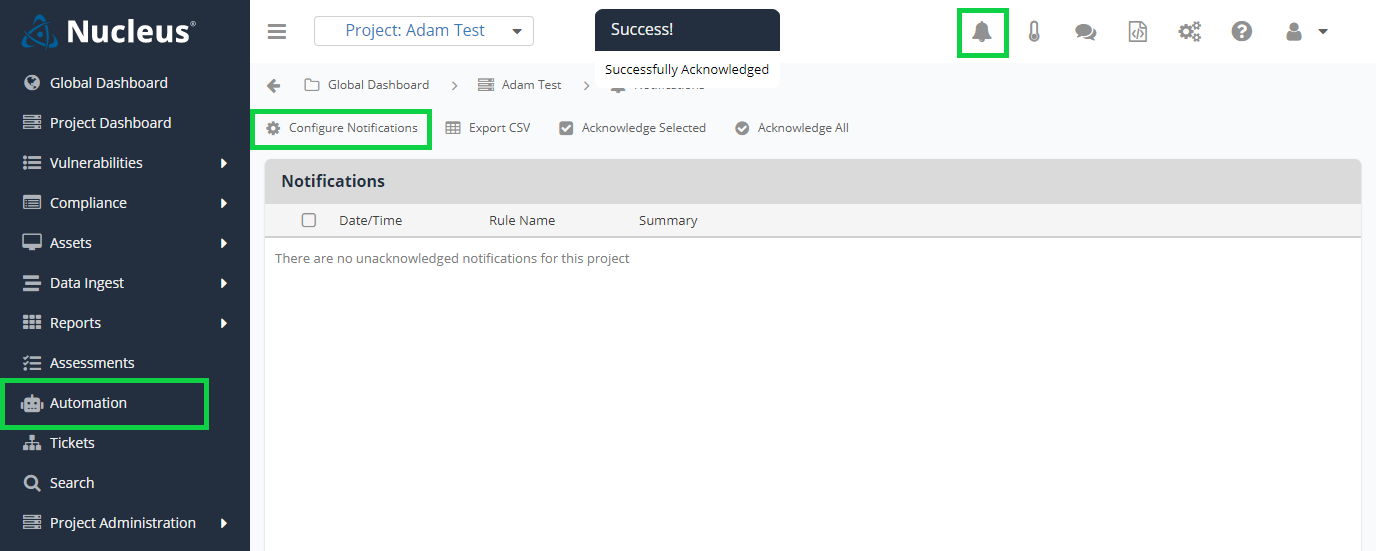
2. If you chose to follow route A, click Configure Notifications. Otherwise, click Add Rule to create a new rule or click the pencil icon in the Actions column to edit an existing rule.
3. Enter or edit the following details in the rule setup modal.
Step 1 - Rule Criteria
| Field | Description |
|---|---|
| Rule Name | Enter a name for the rule and the parameters that trigger this rule. This will appear in some notifications so make your descriptions clear and specific. |
| Options | Check the box here to include the project name in the title of the notification. |
Vulnerability Criteria
Options for conditions that Nucleus looks to match.
You want to trigger this rule for the following conditions: a new vulnerability is critical severity, has public exploit code available, and affects Fortinet.
Condition | Description | Field Type |
|---|---|---|
Assigned Team | Filter by the team assigned to the finding | Tag/multi-select (teams). Qualifiers: is assigned, is unassigned, is one of, is none of |
Assignee | Filter by the user assigned to the finding | Tag/multi-select (project users). Qualifiers: is assigned, is unassigned, is one of, is none of |
CISA KEV Vulnerability | Indicates whether the vulnerability is on the CISA Known Exploited Vulnerabilities (KEV) catalog | Boolean: Yes, No |
CVE | Filter by one or more CVE identifiers | Tag/multi-select (free-entry). Qualifiers: contains, is any of, is all of |
CVE Exists | Indicates whether the finding has an associated CVE | Boolean: Yes, No |
CVSS Score | Filter by CVSS base score (0.0–10.0) | Numeric. Qualifiers: greater than, less than, equals, range |
EPSS Score | Filter by EPSS probability score (0.0–1.0) | Numeric. Qualifiers: greater than, less than, range |
Finding Package | Filter by the package the finding is associated with | Tag/multi-select (free-entry). Qualifier: is one of |
Finding Package Fix Versions | Filter by the fix versions reported for the package | Text. Qualifier: contains |
Finding Package Version | Filter by the affected package version | Text. Qualifier: contains |
Nucleus Actors | Threat actors associated with the vulnerability | Tag/multi-select (free-entry). Qualifiers: is any of, is all of, is none of |
Nucleus Ease of Exploitation | Indicates the assessed ease of exploitation | Dropdown: Very Easy, Easy, Moderate, Hard, Very Hard. Qualifiers: is one of, is none of |
Nucleus Exploit Weaponized | Indicates whether a weaponized exploit is available | Boolean: Yes, No |
Nucleus Exploitation Consequence | Indicates the assessed consequence of successful exploitation | Dropdown: Code Execution, Unauthorized Access, Command Execution, Privilege Escalation, Data Exfiltration, Denial of Service, Service Disruption. Qualifiers: is one of, is none of |
Nucleus Exploited | Indicates whether the vulnerability has been exploited | Boolean: Yes, No |
Nucleus Exploited by Malware | Indicates whether the vulnerability has been exploited by malware | Boolean: Yes, No. Qualifiers: is, exists, does not exist |
Nucleus Exploited by Ransomware | Indicates whether the vulnerability has been exploited by ransomware | Boolean: Yes, No |
Nucleus Fix Available | Indicates whether a fix is available | Boolean: Yes, No |
Nucleus Impacts OT | Indicates whether the vulnerability impacts operational technology | Boolean: Yes, No |
Nucleus Likely to be Exploited | Indicates whether Nucleus assesses the vulnerability is likely to be exploited | Boolean: Yes, No |
Nucleus Malware | Malware associated with the vulnerability | Tag/multi-select (free-entry). Qualifiers: exists, does not exist, is any of, is all of, is none of |
Nucleus Mitigation Available | Indicates whether a mitigation is available | Boolean: Yes, No |
Nucleus Patch Available | Indicates whether a patch is available | Boolean: Yes, No |
Nucleus Private Exploit Available | Indicates whether a private exploit is available | Boolean: Yes, No |
Nucleus Public Exploit Available | Indicates whether a public exploit is available | Boolean: Yes, No |
Nucleus Remote Exploitation | Indicates whether the vulnerability is remotely exploitable | Boolean: Yes, No |
Nucleus Risk Score | Filter by the Nucleus-calculated risk score (0–1000) | Numeric. Qualifiers: greater than, less than, equals, range |
Nucleus Threat Rating | Indicates the Nucleus-assigned threat rating | Dropdown: Existential, Critical, High, Medium, Low. Qualifiers: is one of, is none of, exists, does not exist |
Nucleus Widely Exploited | Indicates whether the vulnerability is widely exploited | Boolean: Yes, No |
Nucleus Zero Day | Indicates whether the vulnerability is currently a zero-day | Boolean: Yes, No |
Nucleus Zero Day Previously | Indicates whether the vulnerability was previously a zero-day | Boolean: Yes, No |
Source | Filter by scan source/finding source | Tag/multi-select (free-entry). Qualifier: is one of |
Vulnerability Description | Filter by text contained in the vulnerability description | Text. Qualifier: contains |
Vulnerability Discovered | Filter by number of days since the vulnerability was discovered | Numeric (# of days, max 4000). Qualifiers: greater than, less than |
Vulnerability Exploitable | Filter by exploitable flag | Dropdown: Exploitable, Not Exploitable. Qualifier: is |
Vulnerability Name | Filter by text contained in the vulnerability name | Text. Qualifier: contains |
Vulnerability Path | Path component reported with the finding (e.g., file/URL/package path) | Text. Qualifier: contains |
Vulnerability Severity | Filter by vulnerability severity | Dropdown: Critical, High, Medium, Low, Informational. Qualifier: is one of |
Vulnerability Solution | Filter by text contained in the recommended solution | Text. Qualifier: contains |
Vulnerability Status | Filter by finding status | Tag/multi-select (statuses). Qualifier: is one of |
Vulnerability Type | High-level vulnerability classification | Dropdown: OS, Application, Hardware. Qualifiers: is any of, is none of, does not exist |
Asset Criteria
Select the set of assets you want to trigger this rule. Only assets that match the filters you specify in this step will be included.
You can select all for all assets, or specify assets by asset groups, Hostnames, IP ranges, etc.
Optional: Select "Notify about new assets" if you want to be notified when a new asset appears in a new scan.
You can select from multiple filter options:
Condition | Description | Field Type |
|---|---|---|
All | Default behavior when no asset criteria is entered. The rule matches every asset. | All |
App Name | Filter by application name. | Text field with exact matching, wildcard matching, or full regex matching |
Asset Group | Create tickets only for assets that are in (or not in) the selected asset groups. | Searchable dropdown. Qualifiers: is in all of, is in any of, is in none of, is, is not, is empty, is not empty |
Asset Name | Create tickets for all assets that match a certain name or naming convention. | Textfield with exact matching, wildcard matching, or full regex matching |
Asset Type | Create tickets for all assets of a specific type. | Dropdown. Qualifiers: is one of, is none of |
Branch | Filter by application branch. | Text field. Qualifiers: is, is not |
Business Criticality | Filter by the asset's business criticality rating. | Dropdown: Critical, High, Moderate, Low. Qualifiers: is one of, is none of |
Business Owner | Search for and select any user in the current Nucleus project. | Search field or text field with dynamic matching ( |
Business Owner Team | Search for and select any team in the current Nucleus project. | Search field or text field with dynamic matching ( |
CI Alias | Filter container images by alias. | Text field with exact matching, wildcard matching, or full regex matching |
CI Digest | Filter container images by digest. | Text field with exact matching, wildcard matching, or full regex matching |
CI ID | Filter container images by ID. | Text field with exact matching, wildcard matching, or full regex matching |
CI Platform Arch | Filter container images by CPU architecture. | Dynamic dropdown. Qualifiers: is one of, is none of, is empty, is not empty |
CI Platform Arch Features | Filter container images by CPU architecture features. | Text field with exact matching, wildcard matching, or full regex matching |
CI Platform Arch Variant | Filter container images by CPU architecture variant. | Text field with exact matching, wildcard matching, or full regex matching |
CI Platform OS | Filter container images by operating system. | Dynamic dropdown. Qualifiers: is one of, is none of, is empty, is not empty |
CI Platform OS Features | Filter container images by operating system features. | Text field with exact matching, wildcard matching, or full regex matching |
CI Platform OS Version | Filter container images by operating system version. | Text field with exact matching, wildcard matching, or full regex matching |
CI Registry | Filter container images by registry. | Text field with exact matching, wildcard matching, or full regex matching |
CI Repository | Filter container images by repository. | Text field with exact matching, wildcard matching, or full regex matching |
CI Tag | Filter container images by tag. | Text field with exact matching, wildcard matching, or full regex matching |
Compliance Scope | Filter by the asset's compliance scope. | Dropdown: In-Scope, Out-of-Scope. Qualifier: is |
Custom Fields | Create tickets for assets matching a custom asset field. | Text field with exact matching, wildcard matching, or full regex matching |
Data Sensitivity | Filter by the asset's data sensitivity rating. | Dropdown: Critical, High, Moderate, Low, Unknown. Qualifiers: is one of, is none of |
Description | Filter by the asset description or notes. | Text field with exact matching, wildcard matching, or full regex matching |
End of Life (EOL) | Filter by the asset's end-of-life status. | Numeric field (days). Qualifiers: is EOL, is not EOL, within |
Host Name | Filter by the asset's host name. | Text field. Qualifiers: is, is not |
IP | Create tickets for assets with a specific IP, IP range, or comma-separated list of IPs. | IP field |
Language | Filter by application language. | Text field with exact matching, wildcard matching, or full regex matching |
Location | Filter by the asset's location. | Text field with exact matching, wildcard matching, or full regex matching |
MAC Address | Filter by the asset's MAC address. | Text field with exact matching, wildcard matching, or full regex matching |
Network Exposure | Filter by the asset's network exposure. | Dropdown: Internal, External. Qualifiers: is, is not |
Operating System | Filter by the asset's operating system. | Text field with exact matching, wildcard matching, or full regex matching |
Repository Type | Filter by application repository type. | Dropdown: git, svn, cvs. Qualifiers: is one of, is none of |
Repository URL | Filter by application repository URL. | Text field with exact matching, wildcard matching, or full regex matching |
Source | Filter by the asset's source or scan type. | Text field. Qualifiers: is, is not |
Support Team | Search for and select any team in the current Nucleus project. | Search field or text field with dynamic matching ( |
Create tickets for all assets which match a custom asset field | Textfield with exact matching, wildcard matching, or full regex matching |
Step 2 - Notification Method
Next, you'll choose how to send the notification or ticket. You can choose as many of the notification methods in the rule as you wish.
Available notification methods:
| Method | Description |
| In App | Display notifications within Nucleus |
| Chat | Send notifications to a Slack or Microsoft Teams channel (requires configured connector) |
| Send email notifications to specified addresses | |
| SMS | Send SMS text notifications (availability depends on environment configuration and available phone) |
Step 3 - Notification Method Options
Lastly, you can optionally choose some notification options, as defined below.
The options checkboxes control which events trigger notifications when a scan is processed.
Vulnerabilities
- New - Receive notifications when new findings are discovered that match your rule criteria.
- Mitigated - Receive notifications when findings that match your rule criteria are remediated.
Assets
- Notify About New Assets - Receive notifications when new assets appear in a scan. This option respects Asset Criteria filters only; Vulnerability Criteria filters do not apply to new asset notifications.
4. Click the Save & Finish button and you're done! Your rule is created and will run automatically when triggered by the criteria you set.
If you have any questions, please contact us through the support center.